
Items related to Basic Computers for Beginners
Synopsis
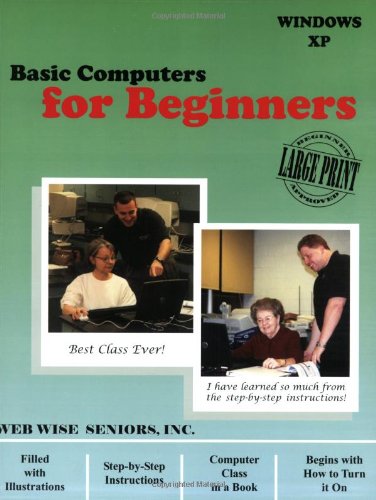
"The best computer class I have ever taken!" and "I never knew that computers could be explained so well!" are frequent comments by Web Wise Senior students. Since 1999, Web Wise Seniors has successfully taught thousands of beginning computer users. Now, for the first time, the same teaching methods successful in Web Wise Seniors courses are found in this easy to understand book.
This book is not a reference for computers. It is a learning guide for people of any age who are unfamiliar with computers, but especially designed for seniors who want to be skilled computer users. It is like having a private instructor by your side as you walk through the basics of computer use with your book. This book is full of common questions, asked in real classes by beginners, with easy to follow answers that have already helped thousands.
Reading explanations and definitions will only get you so far. You need to actually use the computer to learn to use it, and this book will help you do just that. It will help you get started using the computer by walking you through basic skills step-by-step while answering your "whys" and "whats" along the way.
Web Wise Seniors teaches basic computer classes every day. WWS has seen what works, what doesn’t work, and what beginners want to know first hand.
TOPICS INCLUDE: turning the computer on, explanations of the Pieces and Parts, using the mouse, working with windows, saving, navigating through the computer, customizing and organizing the computer, installation, the recycle bin, definitions of terminology and much more!
"synopsis" may belong to another edition of this title.
From the Inside Flap
Basic Computers For Beginners
By Web Wise Seniors An education program for beginning computer users
Web Wise Seniors, Inc. 305 Woodstock Rd. Eastlake, Ohio 44095
Excerpt. © Reprinted by permission. All rights reserved.
Section 3: More About the Mouse
Don t Let the Mouse Discourage You
Learning to direct the mouse may be the most difficult skill to develop as you are learning to use your computer. Listen to the hints on mouse use presented in this chapter, stick with it and you will master the mouse before you know it. Most importantly, be patient with yourself.
Learning to Use the Mouse Correctly YEAH!
Learning to use the mouse can be one of the most frustrating things about learning to use a computer. Luckily, doing a few things properly can minimize this frustration.
First, you need to learn how to hold the mouse properly. People have the most trouble learning to use the computer when they hold the mouse like it has whiskers. Get a good grip on the mouse by placing your thumb on the inside of the mouse and your ring finger on the outside of the mouse. The back of the mouse should rest snuggly into the palm of your hand.
The tail of the mouse should ALWAYS go away from you. If you are holding the mouse correctly, the "tail" or cord of the mouse will go away from you. By holding the mouse properly, it forces you to keep the mouse-tail away from yourself. By pushing the mouse towards its tail, you will also be pushing the mouse away from yourself. Pushing the mouse towards its tail, moves the mouse arrow up the computer screen. Pushing the mouse away from its tail, towards yourself, will moves the mouse arrow down the screen. Pushing the mouse to its right moves the arrow to the right and pushing the mouse left will move the arrow to the left.
Holding the Mouse Correctly: Visual Guide
The mouse must be moved on a smooth flat surface to work. Pick the mouse up and move it around in the air, you will see that the mouse arrow on the computer screen will not move. This is an important aspect of the mouse to make note of because it provides you with the solution to one of the most common problems associated with mouse use.
Often times, new mouse users, run out of space on their desk when using the mouse, reaching far to their left or right trying to guide their mouse arrows across the computer screen. Occasionally a new student will run the mouse off the table or into the computer while attempting to move the mouse arrow on the computer screen to its destination. You can avoid this pitfall by simply picking the mouse up and placing it down on the table where you have more room to roam. Remember, while the mouse is in the air, the mouse arrow on the screen will not move. The mouse arrow stays still until you place the mouse back down and begin rolling it on a smooth surface again.
The Mouse and its Buttons
The mouse typically has two buttons. These buttons are referred to as the left and right mouse buttons. The left button is used to select an object on the screen or perform an action. When you want to tell the computer to do something, you simply place the mouse arrow over an object and gently press the left mouse button one time. This is called a single click or a left click.
Sometimes you have to perform an action called a double click. A double click is two quick clicks, gentle presses, of the left mouse button. Double clicks are usually used to open/activate icons. Icons will be explained further in Chapter 3: Section 6. When performing a double click it is important to keep the mouse completely still. If the mouse moves at all during a double click, the double click will not register. To avoid moving the mouse during a double click, try to click the mouse lightly. Hard clicking will cause the mouse to move.
Hint: Don t click too much. Remember, each time you click the left mouse button you are telling the computer to do something, so be very careful with your clicks.
The Right Mouse Button
While you are learning, you can do everything you need to do with the left mouse button. The right button is used to bring up a shortcut menu. Advanced users use the right mouse button to perform actions listed in this menu. Throughout this book, you will never need to use the right mouse button.
It is important to understand what happens if you accidentally press the right mouse button. If you accidentally press the right mouse button, a gray menu (looks like a gray box) will appear on your computer screen. To get rid of the gray menu, simply move the mouse arrow so it is NOT touching the gray box and press the left mouse button one time. The gray box will disappear.
"About this title" may belong to another edition of this title.
Search results for Basic Computers for Beginners

Stock Image
Basic Computers for Beginners
Seller: ThriftBooks-Atlanta, AUSTELL, GA, U.S.A.
Seller rating 5 out of 5 stars

Paperback. Condition: Good. No Jacket. Former library book; Pages can have notes/highlighting. Spine may show signs of wear. ~ ThriftBooks: Read More, Spend Less. Seller Inventory # G0974823708I3N10